Surplus Summit 2012 Part One: Los Angeles

http://www.flickr.com/photos/mightyohm/6882203127/in/photostream
(Photo: Tony KC6QHP testing out his 47GHz amateur radio. Remember this post? All that work paid off, the radio works!)

Last month I cashed in some airline miles and finally got to visit some old friends and spend some time in beautiful Southern California. Some long-time readers of the blog may remember the last time I did something like this in 2009.

While I was there I visited my good friend Tony in Los Angeles, and we went on a tour of surplus electronics and swap meets that we called Surplus Summit 2012.

Continue reading Surplus Summit 2012 Part One: Los Angeles

Adventures with EPROMs

Reading Fluke 8842A EPROMs

In December I received a strange request from Franci, S57FK. He had a sick Fluke 8842A digital multimeter with a bad processor and was in desperate need of some EPROM images. He noticed that I had an identical Fluke sitting on my bench and was hoping that I could read the contents of the EPROMs inside my unit and send them to him so that he could get his meter running again.

Continue reading Adventures with EPROMs

Alternative software for the HV Rescue Shield

Dennis writes…

I thought I’d share with other users of the HV Rescue shield an enhanced Arduino script I have written, based on Jeff’s original software v212.

The new software retains the look and feel of the original, it can still be run in interactive and non interactive mode and starts by requesting the AVR family as before. The existing fuse settings are then printed along with the device signature and lock bits. After this the user is presented with a menu of functions.

The E command allows the user to erase the AVR.

The F command allows the fuses to be set as before. OK or fail will be printed depending on the success of the operation.

The R command allows a block of the flash memory to be dumped to screen. The user has to input the required start address in hex.

The P command is similar to the R command but operates on the EEPROM

The W command performs a simple test of the flash by writing a small block of data to it and checking it programs correctly. The user has to input the required start address in hex, which must be the first byte of a page (see device datasheet for details about page size). The user can view the test pattern written by using the R command to read it back.

The T command performs a similar test on the EEPROM but with a different shorter 4 byte pattern as EEPROM page sizes are smaller.

Dennis posted a link to his alternative software in the HV Rescue Shield support forum.

Thanks, Dennis!

PCB / Electronics Workbench Flickr Pool Screensaver

http://www.flickr.com/photos/mightyohm/6868098301/in/photostream

Interested in setting up a cool screensaver that will display a continuously changing collage of photos from the Electronics Workbench and Printed Circuit Boards flickr pools?

Here’s how to do it in Windows:

First, install Picasa.  This should install the Google Photos Screensaver.

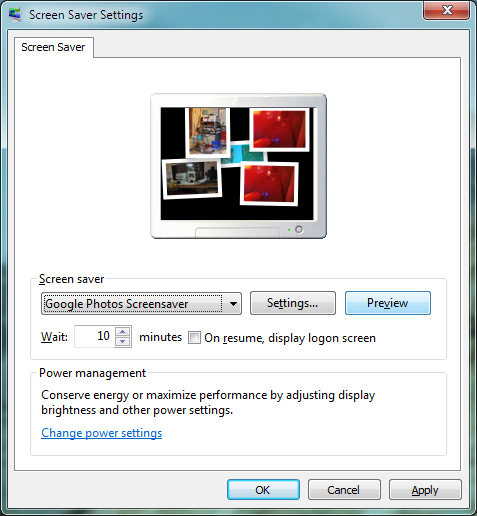
Next, open the Windows Screen Saver Settings control panel. (Type “screen saver” into the Windows 7 search bar, open the Windows Control Panel and navigate to Appearance and Personalization->Change screen saver, etc.)
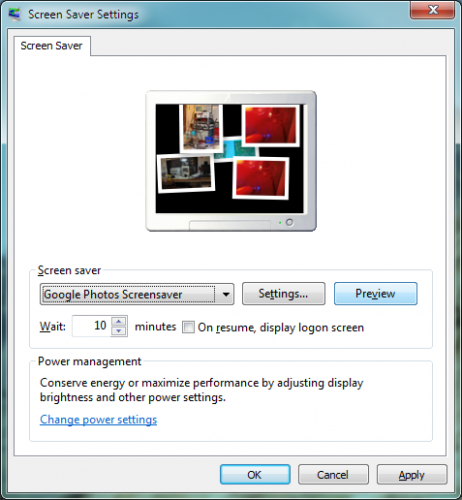
Select the Google Photos Screensaver and click Settings…
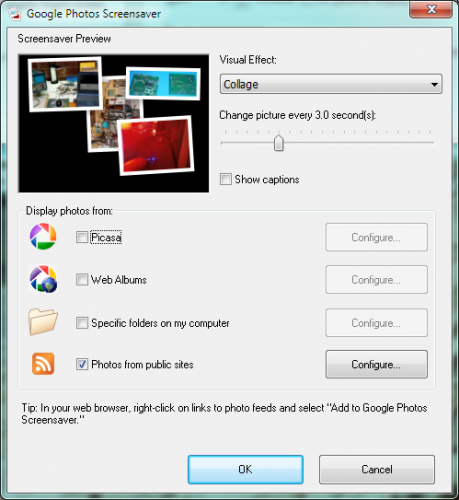
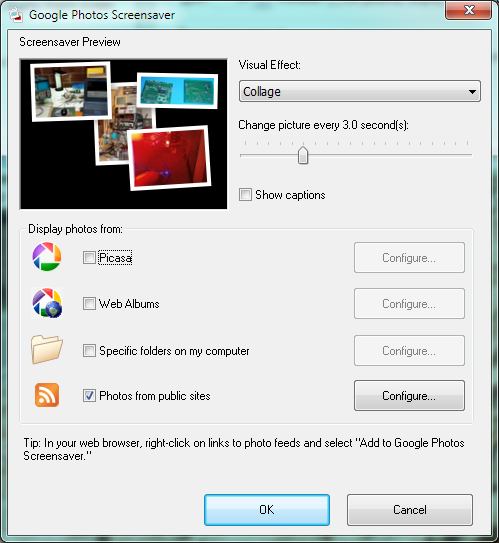
Set the Visual Effect type to Collage, and adjust the Change picture every… slider to taste – I suggest starting at 3.0 seconds.

Uncheck all options except Photos from public sites, then click Configure…
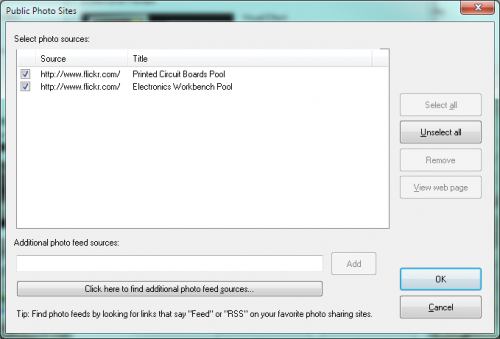

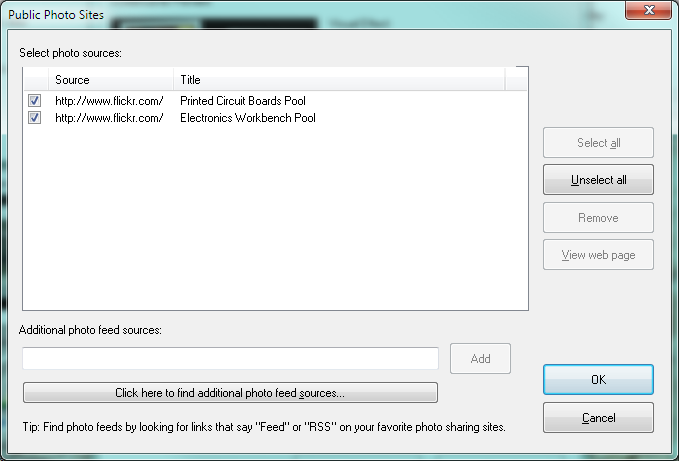
Copy and paste each of the following RSS feeds into the Additional photo feed sources dialog, and click Add after pasting each one.

http://api.flickr.com/services/feeds/groups_pool.gne?id=812901@N20&lang=en-us&format=rss_200
http://api.flickr.com/services/feeds/groups_pool.gne?id=1767402@N25&lang=en-us&format=rss_200

After adding both feeds, make sure the entries for each them are checked and click OK. Then click OK again to return to the Windows Screen Saver Settings window.

Click Preview and photos from the Electronics Workbench and Printed Circuit Boards flickr pools should start appearing on your screen. If so, the screen saver is working.

Click OK to close the control panel and you’re done!

If you’re interested in setting this up in OS X, the process is very similar – just add the RSS Feeds to your screen saver settings as documented here.

Have fun!

Join the resistance.