Make:SF is meeting at Instructables HQ tomorrow (Feb. 10th) at 6:30PM.
There is a $5 suggested donation to help cover costs.

Make:SF is meeting at Instructables HQ tomorrow (Feb. 10th) at 6:30PM.
There is a $5 suggested donation to help cover costs.

Getting Started with Arduino
Massimo’s short text is an excellent introduction to the hardware and software sides of the Arduino and contains a walk-through for uploading a sketch to the board, basic programming techniques, interfacing with common sensors, troubleshooting techniques, and some interesting notes about tinkering, physical computing and interaction design. The book is based on a collection of notes that were formerly available within the Arduino wiki. The notes were removed when the book was released, but fortunately I saved a copy and you can download them here.
The book is available from amazon.com or comes as a companion to the Arduino starter kit available from the Maker Shed.
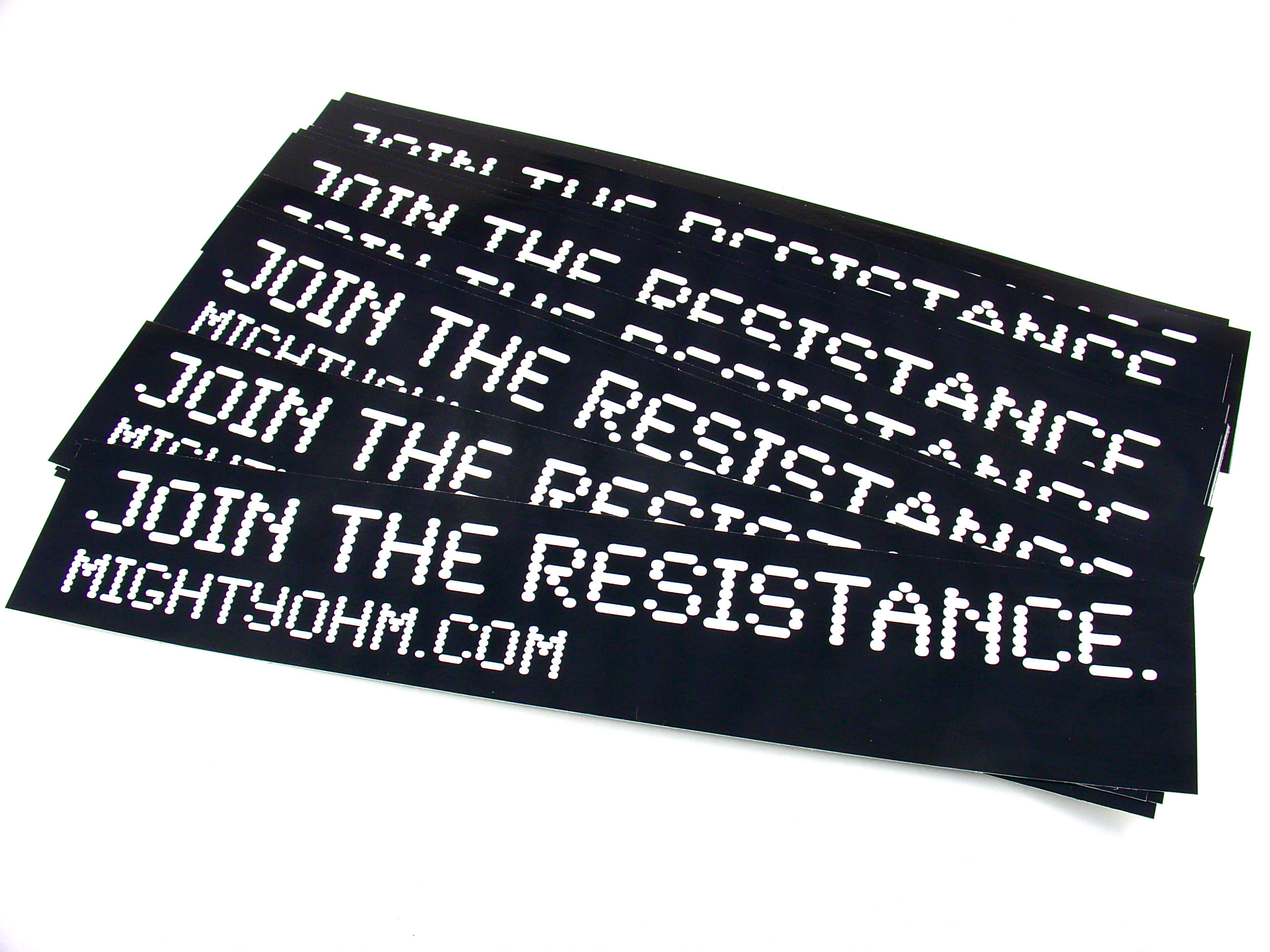
These high quality vinyl stickers measure 8.5×1.5″ and are rated for continuous use outdoors (non geek-speak: they can be used on the outside of your car window or as bumper stickers). The large white text on a solid black background is readable from several feet away.
These are great for sticking on your car, bicycle, motorcycle, lab notebook, laptop, computer, old-school CRT monitor, or your friends.
You can order them by clicking on the “Buy Now” links below, which will take you directly to Paypal’s checkout system.
Payment is accepted via Paypal and all major credit cards. Shipping is via USPS First Class Mail.
 One sticker, $1.00
Discount three-pack, buy two, get one free!

Guess what? The Maker Faire Bay Area 2009 Call for Makers is now online!
The Maker Faire will take place on May 30th and 31st this year at the San Mateo Expo Center (the same location as previous years).
Being in the Faire is an amazing experience. Last year I showed off my techniques for building wiring harnesses and met many cool and interesting people. Makers also get free admission to some special events surrounding the Faire including workshops and performances.
If you have an idea but you’re not sure how to present it or if it’s right for the Faire, come to the Make:SF meeting on Feb 8th and get help from other local Makers!
Proposals are due by March 31st. There is still plenty of time to finish up that project you’ve been working on and submit it to the Faire!
This is the eighth part of an ongoing series about building a low cost, open source streaming internet radio based on the ASUS WL-520gU Wireless Router. If you haven’t already, check out the previous parts (see the links at the end of this article) for some background about the project.
In part seven, we added an LCD status display for the radio that shows the stream name as well as the artist and title of the current track. In this part, we’ll add a tuning knob that lets us change stations without using a computer.
It turns out that this is mostly a software exercise, made simple by taking advantage of the analog to digital converter function of the Atmel ATmega168 AVR that is controlling the LCD display. The addition of the tuner control turns the display circuit into a very simple user interface. Turn the knob and the station changes. The position of the knob determines what station the radio is “tuned” to, and when combined with a calibrated scale it will make it easy to change to any one of the several streaming radio stations stored as presets (favorites?) in the router.
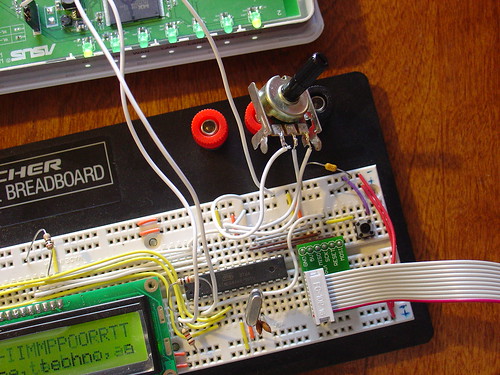
To give you an idea of how this works, here is a demo of the tuner control changing between ten preset stations I have set on the router. The tuner control is in the upper right hand corner of the breadboard. As I adjust the control, the music changes and LCD display updates to show the name of each new station.
Is that cool or what?
If you are interested in adding this functionality to the radio, keep reading and I’ll show you how.
Here is an updated schematic of the AVR circuit showing the potentiometer connected to ADC4 (pin 27).

The AVR firmware has been significantly expanded, slightly reworked and cleaned up in some areas.
The most important changes are:
The ADC range of the ATmega is 0 – 1024 for an input voltage from 0 to 5V. The AVR sends serial data in the format “Tuner: Value” back to the router when the tuner position changes by more than ADC_SENS counts (default is 5). The AVR waits for an “AVR Start!” command from the router before sending any data, this avoids filling up the serial receive buffer on the router before it’s ready to start processing data. An important consequence of this is that the AVR must be reset before running the control script on the router.
You can download the source code and compiled .hex file here. Flash it to the AVR using any compatible ISP programmer and you should be good to go. The source is commented fairly well so if you’re interested in learning how the interface works, take a look. You will need a copy of the ATmega168 datasheet to understand the register names and other architecture-specific parts of the code. Feel free to post in the comments with any questions.
This part is pretty simple – just wire the potentiometer as shown in the schematic. Most potentiometers have three terminals. The left terminal goes to ground, the right one to +5V, and the middle terminal to ADC4 on the AVR (pin 27).
To make bidirectional communication with the AVR work, we have to change a couple config files on the router and disable some services that would otherwise get in the way.
The first change is to modify the /etc/config/network file so that we can always telnet or ssh into the router on a LAN port using the IP 192.168.1.1. The ability to access the router via ethernet is helpful in case we screw something up and lose the wireless connection or the router loses it’s IP address, etc.
Modify the LAN section of /etc/config/network to look like this (changes in bold):
#### LAN configuration
config interface lan
#option type     bridge
option ifname    "eth0.0"
option proto    static
option ipaddr    192.168.1.1
option netmask    255.255.255.0
Save changes, restart the router, and connect an ethernet crossover cable (straight cable might work on some computers) to the router. Configure your desktop/laptop computer with a static IP, like 192.168.1.185. Try to open a telnet connection (or ssh if you have set a password on the router) and see if you can log in. If not, don’t continue with the next steps until you can get this working.
We previously used the router’s serial port to get a login shell. Now that we’re trying to receive data from the AVR on the same serial port, we need to disable the login shell or it will capture the data before we can get to it.
Edit /etc/inittab to look like this (changes in bold):
::sysinit:/etc/init.d/rcS S boot
::shutdown:/etc/init.d/rcS K stop
#tts/0::askfirst:/bin/ash --login
#ttyS0::askfirst:/bin/ash --login
tty1::askfirst:/bin/ash --login
Sysrq is a fascinating and very low level debugging feature of the Linux kernel. It can be used to perform troubleshooting operations and reboot the system. Usually it is invoked with a magic key combination on a desktop computer, but in this case I found that it is easy to accidentally trip over the serial port when using an AVR. (The “break” RS-232 code triggers Sysrq, this probably has something to do with it.)
Fortunately, it’s easy to disable by editing the /etc/sysctl.conf file and adding these lines:
# Disables the magic SysRq key
kernel.sysrq = 0
Reboot the router to apply the changes. Now we can get on with the good stuff!
The real action happens on the router, where a shell script waits for input from the router and changes the station accordingly.
This script is called interface.sh and can be downloaded to the router using wget as shown:
root@OpenWrt:~# cd ~
root@OpenWrt:~# wget http://mightyohm.com/files/wifiradio/interface.sh
...
root@OpenWrt:~# chmod ugo+x interface.sh
The interface script calls an updated version of the display script from part 7, called display2.sh:
root@OpenWrt:~# wget http://mightyohm.com/files/wifiradio/display2.sh
...
root@OpenWrt:~# chmod ugo+x display2.sh
Once both scripts are downloaded, executable and located in /root you can launch interface.sh as follows:
root@OpenWrt:~# ./interface.sh
volume: 60%   repeat: on    random: off
volume: 60%   repeat: on    random: off
adding: http://relay3.slayradio.org:8000/
adding: http://scfire-dtc-aa01.stream.aol.com:80/stream/1046
adding: http://208.101.28.234:8004
… more stations here …
Tuner Position:  0
New station...
http://relay3.slayradio.org:8000/
[playing] #1/10   0:00/0:00 (100%)
volume: 60%   repeat: on    random: off
The interface script adds ten presets to the router, shows the playlist, and then waits for valid tuner data from the AVR. Once it receives a “Tuner: value” line (which should occur shortly after the AVR receives a go signal from the script), the script prints the received tuner positon and changes to the requested station. It will then wait for new tuner data from the AVR and change the station when necessary.
As you can see in the video, this works very well. Over a fast Wi-Fi connection, the time to change stations is almost instantaneous – very satisfying!
That’s it for part eight. In part nine, I’ll add some finishing touches to the router configuration and start talking about enclosures. Stay tuned!
Update: There is a new Wifi Radio Discussion Forum, hop over there to ask questions about the project or see what other people are working on! (4/12/09)
Update 2: Part nine is now available.