Category Archives: Projects

Fixed USBTinyISP drivers for 64-bit Windows 7 / Vista x64

For some time now, those wanting to use the Adafruit Industries USBTinyISP with the 64-bit versions of Windows 7 or Vista were faced with the following errors when attempting to install the device drivers supplied by Adafruit:
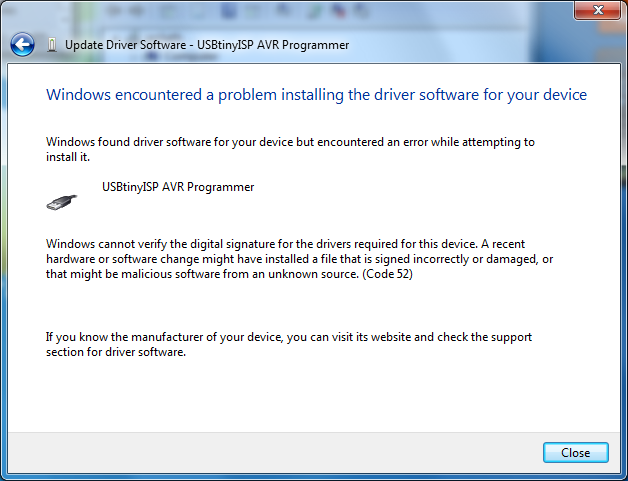
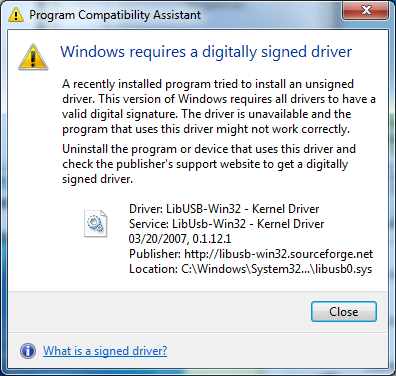
For some reason, the 32-bit versions of these operating systems don’t prevent the unsigned drivers from being installed, although they do complain.

There are a few workarounds that involve hacking Windows or disabling digital signature checking, but thanks to a tip by user wayneft on the Adafruit support forums, I was able to make the process much more straightforward.

The USBTiny drivers are based on libusb-win32.  Based on some notes I found on the libusb-win32 wiki, I discovered that the latest libusb drivers contain a proper digital signature:

Vista/7 64 bit are supported from version 1.2.0.0 since a Microsoft KMCS accepted digital signature is embedded in the kernel driver libusb0.sys. libusb-win32 based device drivers can also be submitted for Microsoft WHQL testing. Several companies have successfully finished the WHQL testing with their libusb-win32 based driver package. This will allow the customers to install the driver without a warning under current 32bit/64bit Windows.

This is good news!

I downloaded the latest version of libusb-win32 (1.2.1.0) and used the included inf-wizard tool to create new drivers for the USBTinyISP:

usbtinyisp_libusb-win32_1.2.1.0

I used the Windows device manager to upgrade the broken drivers on my Windows 7 64-bit machine.  There is still a warning that “Windows can’t verify the publisher of this driver software” but there are no more errors about digital signatures and the new drivers appear to install and work correctly.

I haven’t done a huge amount of testing with the drivers, but I was able to communicate with the USBTiny via avrdude and flash a simple program to an AVR.   I also haven’t tested this fix on Vista, as I don’t have access to a computer running it.  If anyone tests these drivers on Vista x64, please post your results in the comments!
Measuring network performance with iperf

My new place in Austin came with a huge perk for a tech geek like me – it came pre-wired for ethernet in every room.  (Well, technically not every room is wired.  The laundry room, bathrooms, and garage are not, an understandable oversight.)

After installing a new D-Link Gigabit Ethernet Switch, I wanted to check the throughput to see if I was actually getting gigabit speeds – particularly because the house is wired with CAT-5e cable (and not the recommended CAT-6).

There are many ways to measure network throughput.  In the past I have usually copied a file across the network and used a stopwatch to get a relative sense of speed.  However, due to file sharing protocol overhead I always got disappointing results and never knew maximum capability of my network.

This time, based on the advice of a more network-savvy friend, I decided to use a command-line tool called iperf.

iperf is a command-line tool to measure network performance.  It is very powerful, but also easy to use for simple tests.  For a more complete overview of what iperf is and what it can be used for, check out this tutorial or the iperf page on Wikipedia.  iperf has a lot of options, and I won’t cover the majority of them here.  For more usage information, consult the iperf manual.

If you run Debian or Ubuntu (Linux), iperf can be installed by executing

sudo apt-get install iperf

I did these tests with OS X on the Mac since both of my Macs have gigabit ethernet ports and my older PCs don’t.  A package for iperf is conveniently available from Macports.  It can be installed via the graphical package manager Porticus or opening a Terminal window and typing

sudo port install iperf

In my case, all I wanted was a quick test of TCP/IP network performance.  This is easy to do, but it requires two computers, a client and a server, both connected to the network under test.  Ideally, there should be no other network traffic during the test, as this will affect the results.

On the first computer, launch the iperf server by executing

iperf -s

You should see something like this:

------------------------------------------------------------
Server listening on TCP port 5001
TCP window size: 64.0 KByte (default)
------------------------------------------------------------

On the 2nd computer (the client), open a Terminal window and run

iperf -c <IP address or hostname of server> -i 1

Within a few seconds, you should start to see reports coming in on both the client and server terminal windows:

------------------------------------------------------------
Client connecting to mini.home, TCP port 5001
TCP window size:   129 KByte (default)
------------------------------------------------------------
[  3] local 192.168.24.135 port 65142 connected with 192.168.24.77 port 5001
[ ID] Interval       Transfer     Bandwidth
[  3]  0.0- 1.0 sec    110 MBytes    924 Mbits/sec
[ ID] Interval       Transfer     Bandwidth
[  3]  1.0- 2.0 sec    101 MBytes    850 Mbits/sec
[ ID] Interval       Transfer     Bandwidth
[  3]  2.0- 3.0 sec    109 MBytes    914 Mbits/sec
[ ID] Interval       Transfer     Bandwidth
[  3]  3.0- 4.0 sec    100 MBytes    841 Mbits/sec
[ ID] Interval       Transfer     Bandwidth
[  3]  4.0- 5.0 sec    111 MBytes    927 Mbits/sec
[ ID] Interval       Transfer     Bandwidth
[  3]  5.0- 6.0 sec    102 MBytes    853 Mbits/sec
[ ID] Interval       Transfer     Bandwidth
[  3]  6.0- 7.0 sec    110 MBytes    923 Mbits/sec
[ ID] Interval       Transfer     Bandwidth
[  3]  7.0- 8.0 sec    102 MBytes    858 Mbits/sec
[ ID] Interval       Transfer     Bandwidth
[  3]  8.0- 9.0 sec  79.4 MBytes    666 Mbits/sec
[ ID] Interval       Transfer     Bandwidth
[  3]  9.0-10.0 sec  93.6 MBytes    785 Mbits/sec
[ ID] Interval       Transfer     Bandwidth
[  3]  0.0-10.0 sec  1018 MBytes    854 Mbits/sec

The last report (for the interval 0.0-10.0 sec) is the average throughput for the entire test.  I’m more than happy with 854 Mbits (927 Mbits/sec peak!) given my fairly long runs of CAT-5e cable and other machines using the network.   Contrast this with my results over 802.11g wireless:

[ ID] Interval       Transfer     Bandwidth
[  3]  0.0-10.0 sec  24.9 MBytes  20.9 Mbits/sec
Ouch.

The Tech Junkies Build a Wifi Radio (Video)

In this episode of The Tech Junkies, Ben and Eric show how to hack an Asus WL-520gu wireless router into a music playback device. By loading the OpenWRT firmware onto the router and adding a USB sound card, it is possible to convert this cheap/powerful router into a streaming box to be placed anywhere your WiFi is in range. Now you can build your own shoutcast/icecast receiver for cheap and get music wirelessly to any room in your home.

Pretty cool video based on my original Wifi Radio tutorial.

To leave comments or download the video, visit The Tech Junkies Episode #6.

Tony’s Diamond Chop Saw (Part 4)

Finally, I bring you the conclusion of my Diamond Chop Saw series!

In this part I’ll cover a few remaining issues, but mostly I’ll report on my use of the machine in the construction of my 47 GHz radio, for which this project was intended.  If you’re not already familiar with this project, you might want to go back and start by reading Part 1.

Attaching/Aligning the Blade

Attachment of the blade to the hard disk platters (see part 2) sets the basic accuracy of the tool.  If the blade is out of plane the cut will be wider than the blade.  If the blade is off center, portions of the blade will wear faster.  Achieving perfection is virtually impossible, but I managed to get a ‘good enough’ result.

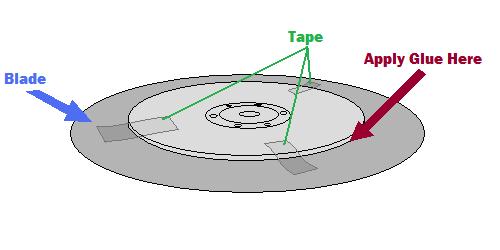
My method was to lay the ring blade down onto the larger platter and use tape to temporarily hold the blade in place while I manually spun it around to check for centering.

Method for centering the blade

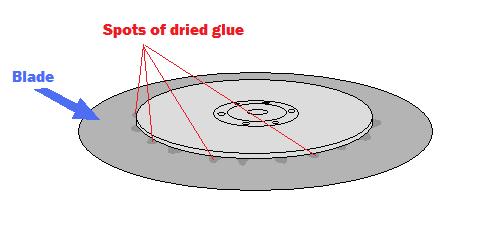
A little fiddling and re-alignment will get things pretty close.  After the centering is good, the next step is to glue the blade into place.  I used tiny drops of Zap-a-Gap around the inner edge of the ring and held the two together firmly as the glue set.

After gluding the blade, spots of glue are visible on the top surface

The result is not perfect, but cuts I have done seem to be sufficiently narrow.

The Cutting Setup

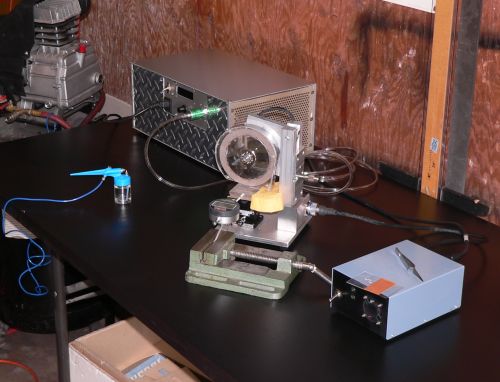
The picture below shows the setup for making cuts.  The large silver box in the background is the vacuum pump, the green vise in front is holding a digital indicator (for making precisely measured cuts) and the blue airbrush is ready for spraying water onto the cutting surface.

Dicing saw setup
Dicing saw setup

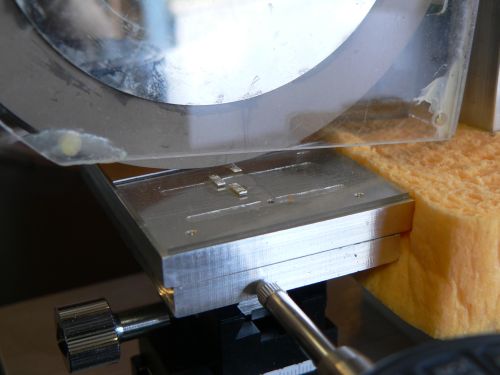
The parts to be cut are mounted on glass slides using Crystalbond adhesive, a thermoplastic mounting polymer.

Test substarets about to be cut
Test substrates about to be cut

Using the Chop Saw

Below are some pictures of cuts made with the saw.

A partial cut through one of the substrates
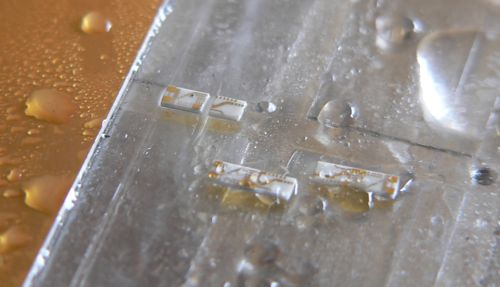
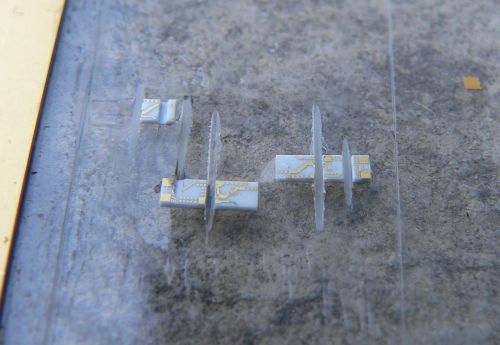
Several diced pieces.
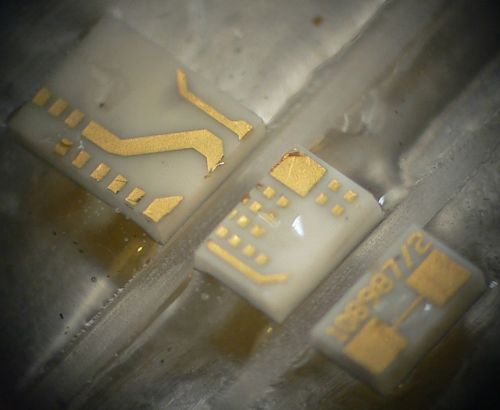
Microscope view of a part diced into three pieces

From the photos above it is clear that the saw is working reasonably well.  The cuts are straight, the pieces have no obvious large chunks missing, and the gold metallization shows minimal signs of peeling.  I have made many cuts using this saw including angled cuts.  I have also used the saw to carefully strip off the backside metallization.  This will come in handy when I am making diveboard-style waveguide transitions.  I have also used the X/Y table to feed the piece along the blade, allowing me to make much longer cuts than in “chop” mode.  These came out very nicely as well.

The accuracy of the saw is reasonably good.  Using a dial or digital indicator, cuts can easily be made with 0.001 inch accuracy, which is sufficient for circuits working through 50 GHz at least.

One issue that was of concern initially was whether a hard drive motor actually had enough power to do the job.  It turns out the motor works fine as long as the cuts are made slowly.  Fast cuts are not advisable anyway, as the part is more likely to fly off into oblivion.  Some of the substrates I cut had fairly thick metal backing and required slower cuts.

Future Improvements

Every project ends up with room for improvement.  With this project a few things come to mind including a precision machined spindle with a better mounting mechanism.  This would require a much larger lathe than what I own, and some careful though into balancing.  Another improvement would be a self-contained coolant sprayer and vacuum pump for the chuck.  Setting up the dicing saw currently requires a vacuum pump, an air compressor, and so on.  Another nice feature would be a microscopic camera to observe the cutting in action.  And finally a CNC retrofit would be nice.  All of these upgrades would be handy, but as it is, the saw is immensely flexible and precise.  I’m still on the first blade which is showing no signs of wear.

Conclusion

It has been a lot of fun putting together this series of articles and even more fun putting together and using this saw.  So if you are planning on putting together a saw like this, happy cutting!  If you are just planning on building something with a hard drive motor, they are really handy for certain applications where high precision, high RPMs, and cheapness are required.