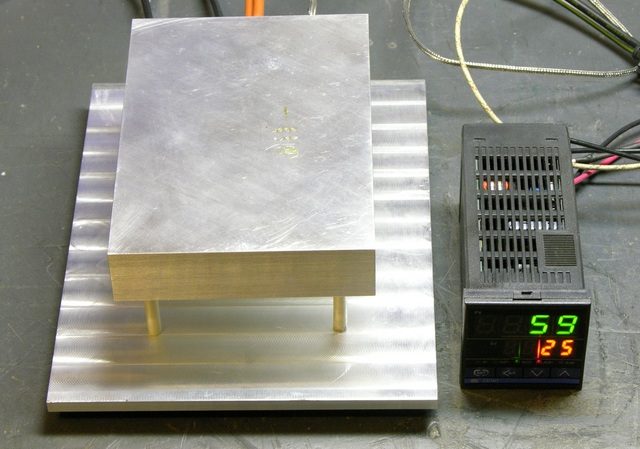
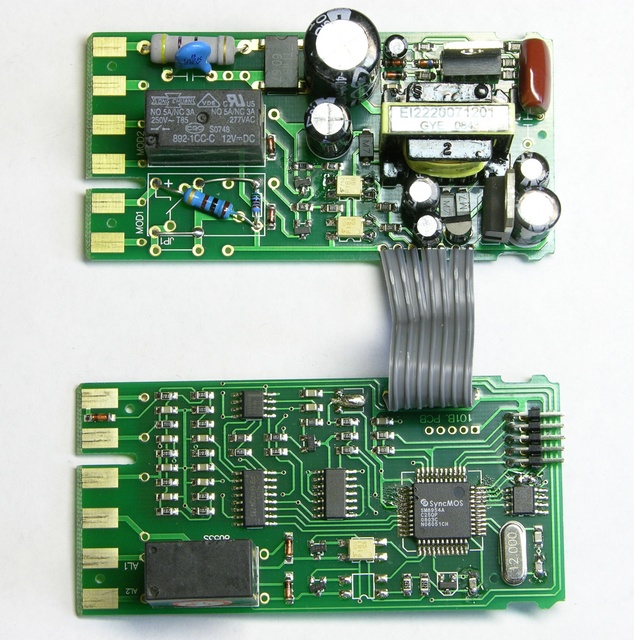
He also posted a bunch of teardown photos (like the one shown below) of the CD101 PID Controller from Sure Electronics. I suspect the CD101 is a cheap knockoff of an RKC PID controller since I can’t find the part number on RKC’s website, even though the front panel clearly says RKC on it. I guess at $40 you can’t ask too many questions, the price is right…
Recently I discovered that our local cable provider will soon be discontinuing analog cable service for most channels. Because of this they are forcing encouraging customers to get new cable boxes and upgrade to digital cable.
I hate cable boxes. More than just another piece of equipment to find a place for near the television, cable boxes waste power, always seem to take forever to change channels, contribute to the ball of wires behind the entertainment center, and add another remote control to the coffee table.
Most importantly, a cable box prevents our old Series 2 TiVo from being able to change channels directly, since it now has to negotiate with the digital cable box to receive TV signals.
TiVo provides a workaround for this – the infamous IR blaster.
I would love to meet the engineer who came up with the IR blaster. Instead of pushing for a universal protocol to electrically connect cable boxes to things that may want to control them, some engineer came up with the incredibly stupid great idea to stick an IR LED in front of the IR receiver of the cable box and use it to simulate a handheld IR remote control. The cable box thinks that the user is punching away at the remote (with lightning speed) while in reality a microprocessor is generating the remote codes and sending them to the LED. It’s both ingenious, and at the same horrific in so many ways. It grates against my engineering sensibility. What manager approved this?
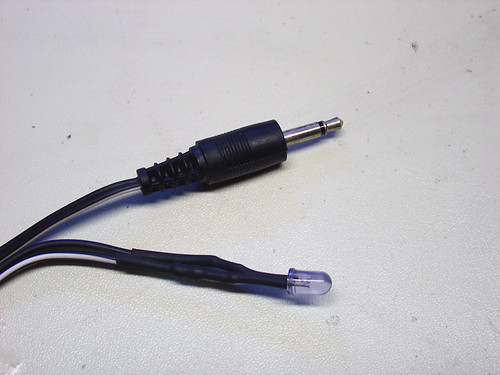
Back to the TiVo. The IR blaster that came with our TiVo was lost long ago, in a time when no unnecessary electrical-optical-electrical sillyness was required for it to function. Rather than spend $3 on eBay and wait a week to get a replacement, I decided to make one out of spare parts in my junk bin:
an infrared (IR) LED
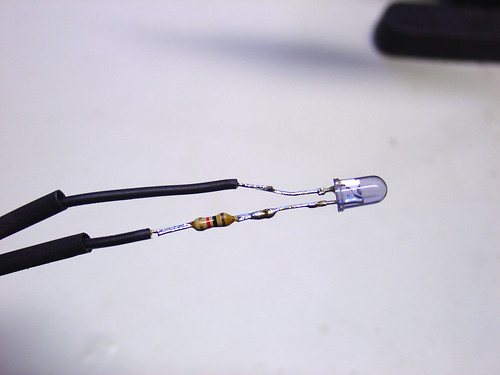
a 1k resistor (not sure if this is necessary, safety first)
a 1/8″ mono headphone plug with a couple feet of cable attached
some heatshrink tubing
duct tape
I don’t know if the resistor is required – the TiVo may already have an internal resistor. I used 1k, if I see any problems with the cable box getting an intermittent signal I’ll try lowering the resistor to 330 ohms.
The tip of the 1/8″ mono plug is positive. I connected the tip wire to the side of the LED with the longer lead (the side opposite the flat side of the LED).
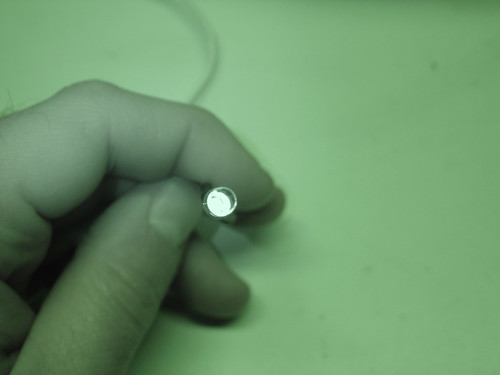
I tested the circuit by applying 3-5V to the 1/8″ plug (tip is positive) and used my digital camera to check if the LED is working. My camera has a decent IR blocking filter so I had to use nightshot mode to see it:
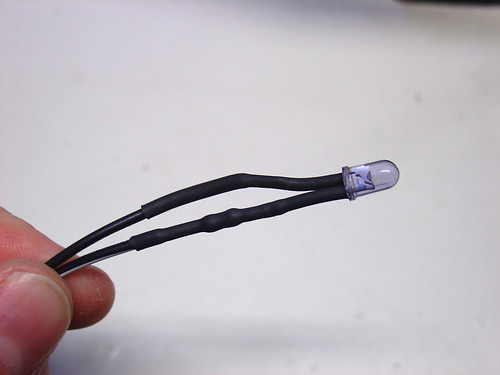
Finally, I put heatshrink over the LED connections and the resistor to avoid short circuits:
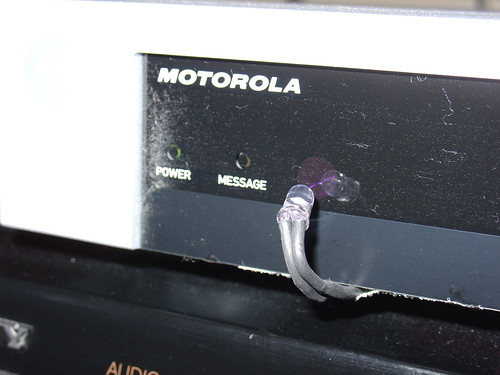
Back in the living room I plugged the DIY IR blaster into the jack marked ‘IR’ on the back of my TiVo. A strip of duct tape to secures the wires to the bottom of the cable box. I bent the LED up to point at the cable box’s IR receiver (the purple dot shown in the really bad photo below, sorry).
All that was left was to configure the TiVo using the cable box setup guide. Within a few minutes I had my TiVo controlling the cable box. The DIY IR blaster works perfectly!
Not bad for $0 in parts (all stuff from my junk bin) and a few minutes of soldering.
Update November 2016: In the vast majority of applications, the series resistor is not required. The majority of IR blaster circuits built into A/V equipment (and video game consoles such as the Xbox) include built-in current limiting circuitry that makes the resistor unnecessary.
This is the eighth part of an ongoing series about building a low cost, open source streaming internet radio based on the ASUS WL-520gU Wireless Router. If you haven’t already, check out the previous parts (see the links at the end of this article) for some background about the project.
In part seven, we added an LCD status display for the radio that shows the stream name as well as the artist and title of the current track. In this part, we’ll add a tuning knob that lets us change stations without using a computer.
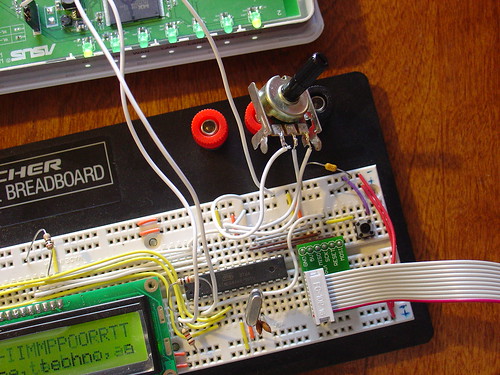
It turns out that this is mostly a software exercise, made simple by taking advantage of the analog to digital converter function of the Atmel ATmega168 AVR that is controlling the LCD display. The addition of the tuner control turns the display circuit into a very simple user interface. Turn the knob and the station changes. The position of the knob determines what station the radio is “tuned” to, and when combined with a calibrated scale it will make it easy to change to any one of the several streaming radio stations stored as presets (favorites?) in the router.
To give you an idea of how this works, here is a demo of the tuner control changing between ten preset stations I have set on the router. The tuner control is in the upper right hand corner of the breadboard. As I adjust the control, the music changes and LCD display updates to show the name of each new station.
Is that cool or what?
If you are interested in adding this functionality to the radio, keep reading and I’ll show you how.
Changes to the hardware:
You will need:
The completed AVR-based LCD display from part seven
A 1k-10k trimmer or potentiometer, linear taper
Some hookup wire
Schematic:
Here is an updated schematic of the AVR circuit showing the potentiometer connected to ADC4 (pin 27).
click to enlarge
Firmware:
The AVR firmware has been significantly expanded, slightly reworked and cleaned up in some areas.
The most important changes are:
The addition of a serial transmit function so the AVR can talk to the router (based on the uart_putchar function)
New code supporting the analog to digital converter (ADC) which reads the value of a potentiometer connected to ADC4.
A new Timer1 overflow interrupt has been added, which occurs roughly every 0.5 seconds. The interrupt service routine (ISR) checks the position of the tuner control, and if it has changed, sends the value to the router. The ISR is towards the top of the file, see the SIGNAL (TIMER1_OVF_vect) section.
The ADC range of the ATmega is 0 – 1024 for an input voltage from 0 to 5V. The AVR sends serial data in the format “Tuner: Value” back to the router when the tuner position changes by more than ADC_SENS counts (default is 5). The AVR waits for an “AVR Start!” command from the router before sending any data, this avoids filling up the serial receive buffer on the router before it’s ready to start processing data. An important consequence of this is that the AVR must be reset before running the control script on the router.
You can download the source code and compiled .hex file here. Flash it to the AVR using any compatible ISP programmer and you should be good to go. The source is commented fairly well so if you’re interested in learning how the interface works, take a look. You will need a copy of the ATmega168 datasheet to understand the register names and other architecture-specific parts of the code. Feel free to post in the comments with any questions.
Modifying the circuit:
This part is pretty simple – just wire the potentiometer as shown in the schematic. Most potentiometers have three terminals. The left terminal goes to ground, the right one to +5V, and the middle terminal to ADC4 on the AVR (pin 27).
Tweaks to the OpenWrt configuration:
To make bidirectional communication with the AVR work, we have to change a couple config files on the router and disable some services that would otherwise get in the way.
/etc/config/network
The first change is to modify the /etc/config/network file so that we can always telnet or ssh into the router on a LAN port using the IP 192.168.1.1. The ability to access the router via ethernet is helpful in case we screw something up and lose the wireless connection or the router loses it’s IP address, etc.
Modify the LAN section of /etc/config/network to look like this (changes in bold):
#### LAN configuration
config interface lan
#option type     bridge
option ifname    "eth0.0"
option proto    static
option ipaddr    192.168.1.1
option netmask    255.255.255.0
Save changes, restart the router, and connect an ethernet crossover cable (straight cable might work on some computers) to the router. Configure your desktop/laptop computer with a static IP, like 192.168.1.185. Try to open a telnet connection (or ssh if you have set a password on the router) and see if you can log in. If not, don’t continue with the next steps until you can get this working.
/etc/inittab
We previously used the router’s serial port to get a login shell. Now that we’re trying to receive data from the AVR on the same serial port, we need to disable the login shell or it will capture the data before we can get to it.
Edit /etc/inittab to look like this (changes in bold):
::sysinit:/etc/init.d/rcS S boot
::shutdown:/etc/init.d/rcS K stop
#tts/0::askfirst:/bin/ash --login
#ttyS0::askfirst:/bin/ash --login
tty1::askfirst:/bin/ash --login
/etc/sysctl.conf
Sysrq is a fascinating and very low level debugging feature of the Linux kernel. It can be used to perform troubleshooting operations and reboot the system. Usually it is invoked with a magic key combination on a desktop computer, but in this case I found that it is easy to accidentally trip over the serial port when using an AVR. (The “break” RS-232 code triggers Sysrq, this probably has something to do with it.)
Fortunately, it’s easy to disable by editing the /etc/sysctl.conf file and adding these lines:
# Disables the magic SysRq key
kernel.sysrq = 0
Reboot the router to apply the changes. Now we can get on with the good stuff!
Shell scripting magic:
The real action happens on the router, where a shell script waits for input from the router and changes the station accordingly.
This script is called interface.sh and can be downloaded to the router using wget as shown:
Once both scripts are downloaded, executable and located in /root you can launch interface.sh as follows:
root@OpenWrt:~# ./interface.sh
volume: 60%   repeat: on    random: off
volume: 60%   repeat: on    random: off
adding: http://relay3.slayradio.org:8000/
adding: http://scfire-dtc-aa01.stream.aol.com:80/stream/1046
adding: http://208.101.28.234:8004
… more stations here …
Tuner Position:  0
New station...
http://relay3.slayradio.org:8000/
[playing] #1/10   0:00/0:00 (100%)
volume: 60%   repeat: on    random: off
The interface script adds ten presets to the router, shows the playlist, and then waits for valid tuner data from the AVR. Once it receives a “Tuner: value” line (which should occur shortly after the AVR receives a go signal from the script), the script prints the received tuner positon and changes to the requested station. It will then wait for new tuner data from the AVR and change the station when necessary.
As you can see in the video, this works very well. Over a fast Wi-Fi connection, the time to change stations is almost instantaneous – very satisfying!
That’s it for part eight. In part nine, I’ll add some finishing touches to the router configuration and start talking about enclosures. Stay tuned!
Update: There is a new Wifi Radio Discussion Forum, hop over there to ask questions about the project or see what other people are working on! (4/12/09)